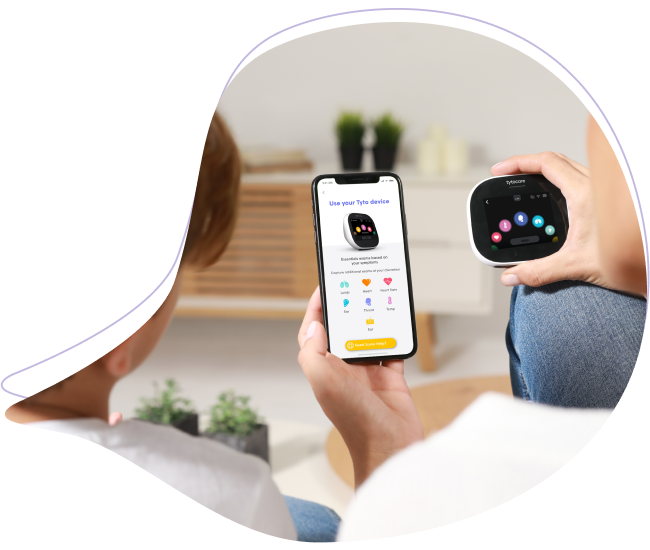
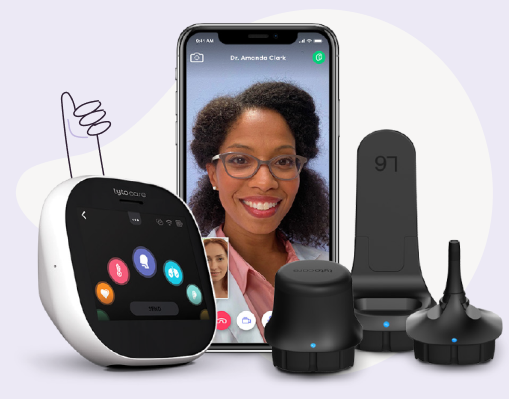
To use your TytoCare device, it must be paired with the TytoCare App. This process connects the device to your local Wi-Fi network using your smartphone or tablet as the bridge.
Pre-pairing Checklist:
- Ensure your mobile device is connected to a strong Wi-Fi signal (close to the router).
- Have your Wi-Fi password ready.
- Ensure the TytoCare device is charged.
- Note: G1 devices require a 2.4 GHz Wi-Fi network.
Pairing Steps
- Initiate Pairing: Open the TytoCare App. If not prompted automatically, tap the Menu (three lines) and select "Pair Tyto Device," or tap the red Disconnect Icon in the upper right corner.
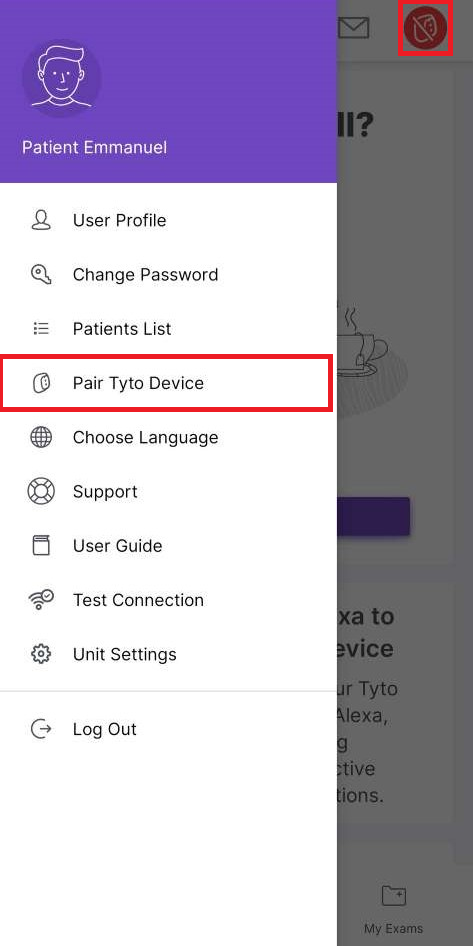
- Select Connection Type: Choose Wi-Fi (preferred) or Hotspot to begin the setup.
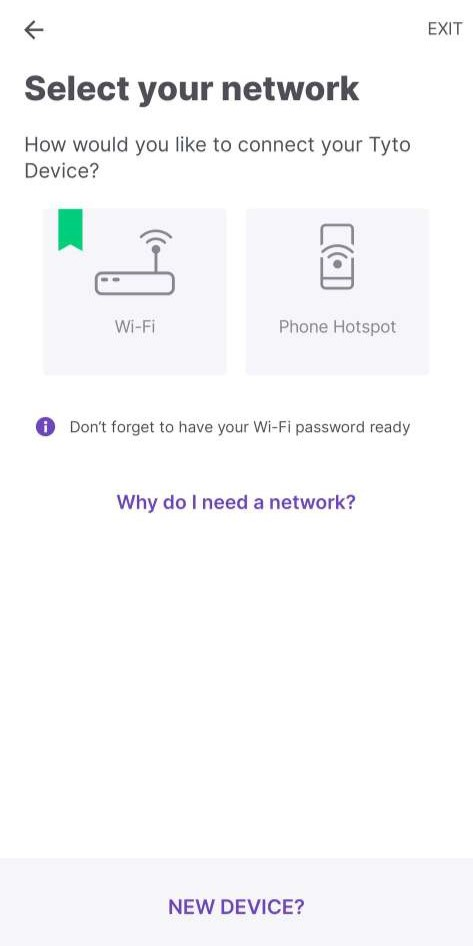
- Network Selection:
- iOS: Enter the password for the network your phone is currently using.
- Android: Select your Wi-Fi network (SSID) from the detected list and tap Next.
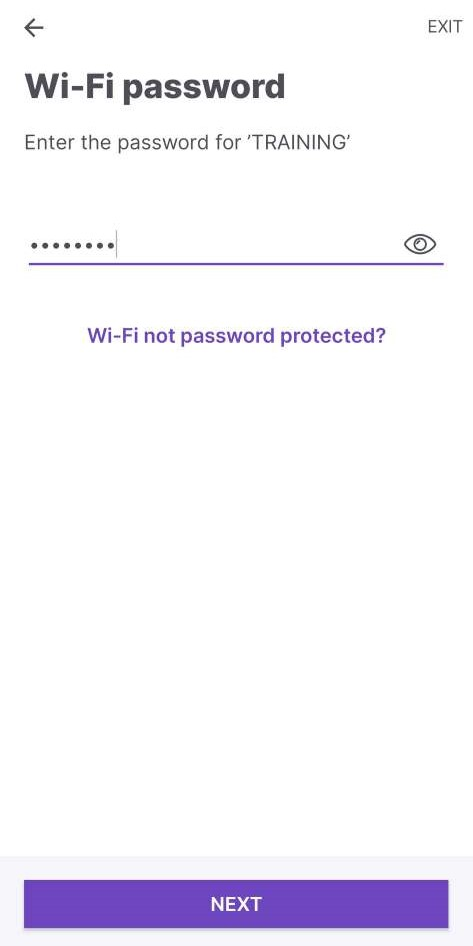
- Generate QR Code: Enter your Wi-Fi password exactly (it is case-sensitive). Tap the "eye" icon to verify the characters. Tap Next to generate the QR code on your phone screen.
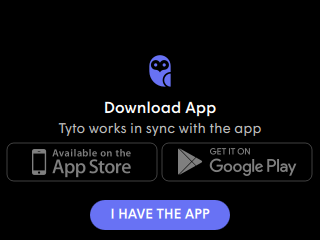
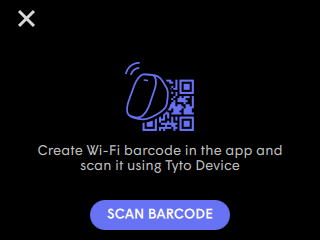
- Prepare the Device: Turn on the TytoCare device. Select "I HAVE THE APP" and then "SCAN BARCODE." If you don't see these, tap the three dots at the top of the device screen and select Pairing.
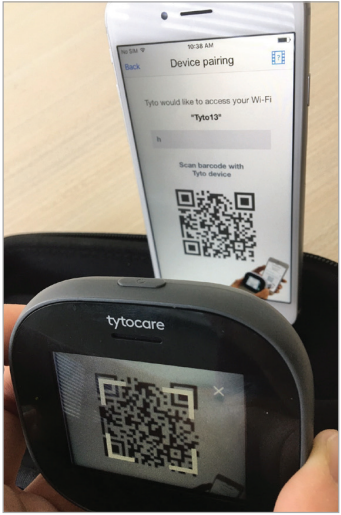
- Scan and Update: Hold the TytoCare device so its camera can see the QR code on your mobile device.
Note: If prompted, proceed with any required firmware updates to ensure the latest features and security.
Confirmation
A green Connect Icon will appear in the top right of the App. On the TytoCare device screen, you will see a Linked Chain icon. You are now ready for your exam.