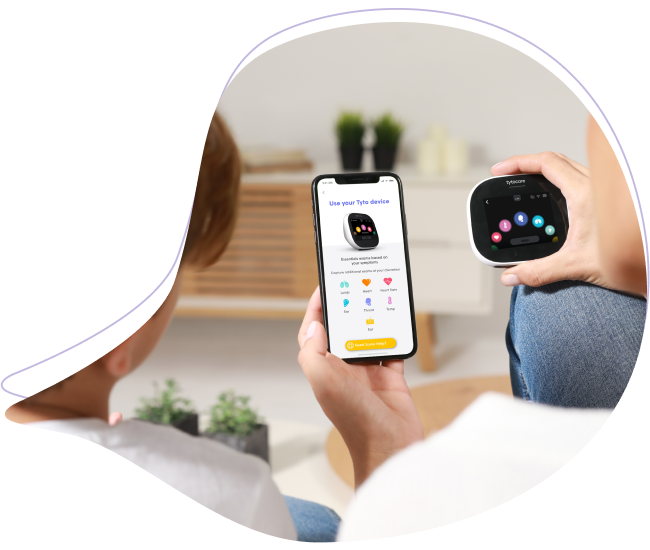
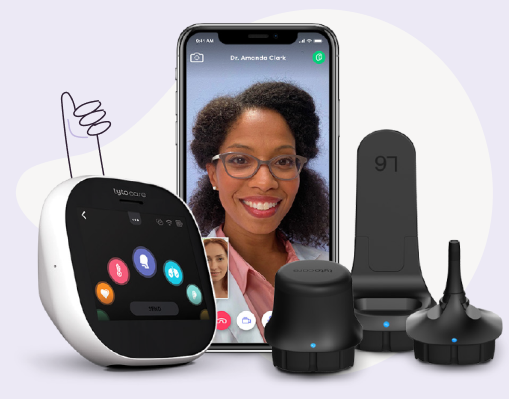
This article provides step-by-step instructions on how to conduct a live virtual visit with a clinician using your TytoHome device.
Note: If you are associated with a specific healthcare provider or organization, please contact them directly for scheduling guidance.
To watch this on YouTube just press CTRL on your keyboard and click on the YouTube logo on the lower right part of the window at the same time.
Initiating Your Visit
- Log In: Open the TytoCare App on your mobile device and log in.
- Power On: Press the power button at the top of the TytoCare device to turn it on.
- Verify Pairing: Ensure the device is paired. If you see the red pairing icon
 , follow the Wi-Fi pairing instructions.
 - Select Patient: Choose the profile of the patient to be examined.
- Choose Visit Type: Select See a clinician online.
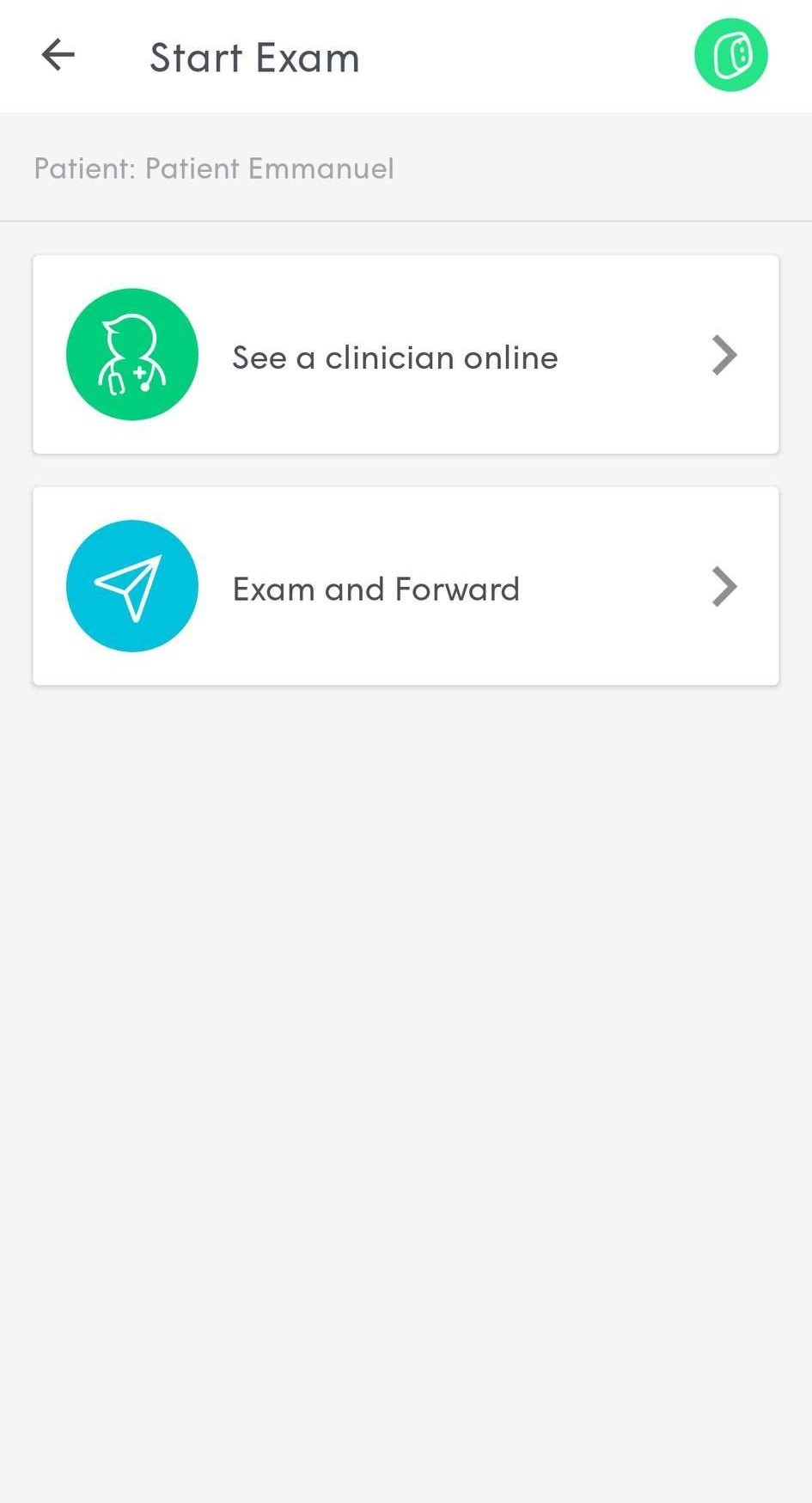
- Select Clinician: Choose your clinician based on their status:
- Available: Available immediately.
- Busy: Currently with another patient but will respond shortly.
- On Call: Not currently logged in but available to accept requests.
- Intake: Complete the symptom questionnaire to provide context for the visit.
The Virtual Exam
Once the clinician starts the session, press Join to begin the video conference. During the visit, the clinician will guide you while remotely controlling your TytoCare device.
You will be prompted to attach specific adaptors as needed:
- Stethoscope: Heart, lung, or heart rate exams.
- Otoscope: Ear exams.
- Tongue Depressor: Throat exams.
- No Adaptor: Temperature or skin exams.
Concluding the Session
After the visit ends, clinician notes will be available on your My Exams page. To finish:
- Close the TytoCare App.
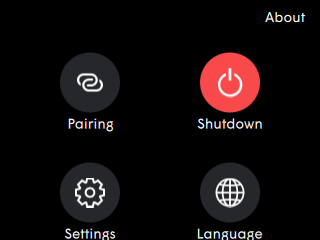
- Power off the TytoCare device by tapping the three-dot icon and selecting Shutdown.